How to fix website not showing up on google fast

It’s a heart-stopping moment for any website owner: you search for your site on Google, and… nothing. It’s vanished. If your website is suddenly not showing up on Google, take a deep breath. It's almost certainly not a catastrophe. More often than not, the culprit is a simple technical glitch, like an accidental 'noindex' tag or a server hiccup blocking Google's crawlers.
No need to panic. A methodical approach is all it takes to figure out what’s going on.
Your First Steps When Your Website Vanishes
When a site disappears from search results seemingly overnight, the cause is usually a small, overlooked detail. I've seen it happen countless times—a developer leaves a 'noindex' tag on a page after an update, or a new plugin messes with the robots.txt file.
Think of it like accidentally leaving the "do not disturb" sign on your hotel room door. Google sees the sign and respectfully stays away. Before you dive into complex diagnostics, it's crucial to check these simple, high-impact areas first. In fact, running through a solid website launch checklist can prevent most of these headaches from ever happening.
This infographic lays out the first three critical checks to run when you realize your site is missing from Google's search results.
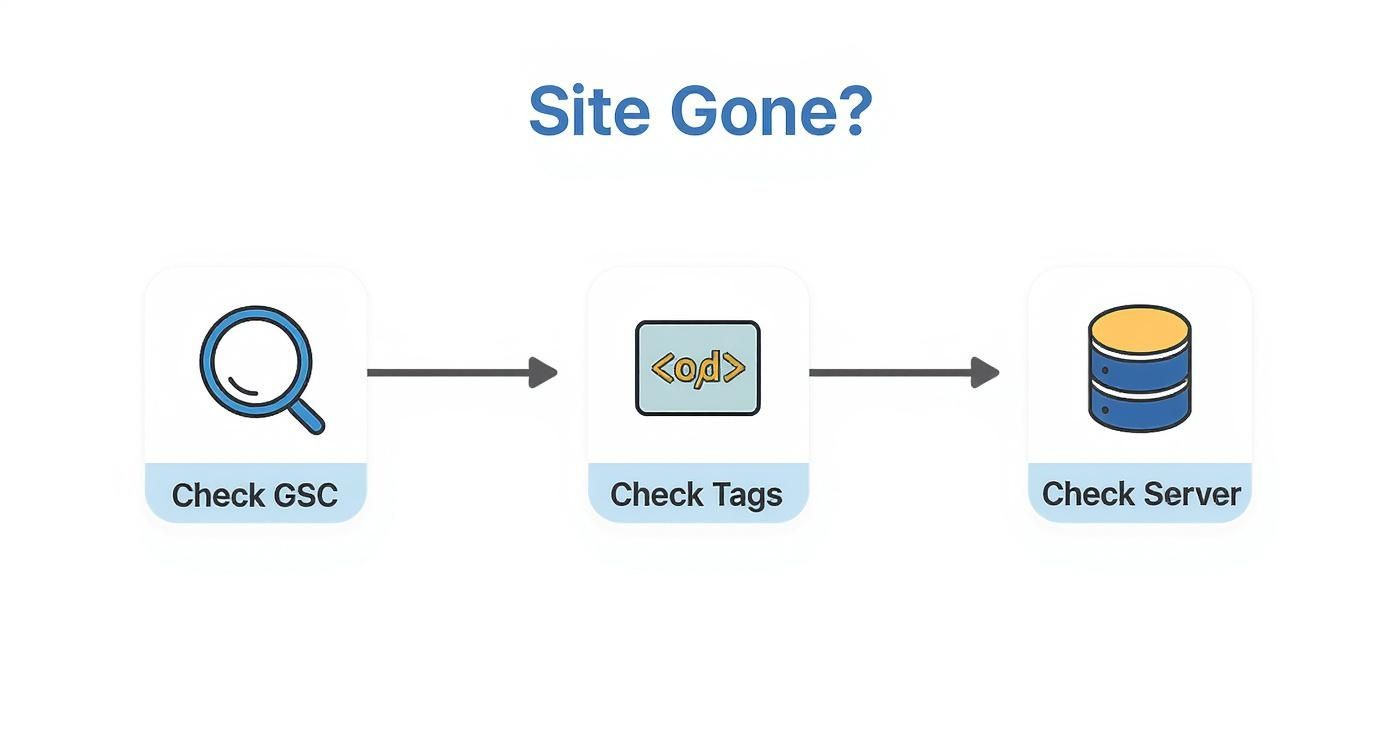
The path is clear: start with Google Search Console for direct feedback from Google, then inspect your site's code for any rogue tags, and finally, check your server's health to ensure it's accessible.
Initial Diagnostic Checklist
To get started, I always run through a quick diagnostic. This table breaks down the first few things you should check to quickly identify the problem.
| Check | Tool | What It Tells You |
|---|---|---|
| URL Inspection | Google Search Console | If Google can access and index your specific pages. |
noindex Tag |
Browser "View Source" | Whether you've accidentally told Google not to show a page in search results. |
robots.txt File |
YourDomain.com/robots.txt | If you're blocking Google's crawlers from accessing parts (or all) of your site. |
| Server Status | Hosting Provider | If your server is down or experiencing errors that prevent crawlers from visiting. |
This checklist covers the most common culprits I've seen in my experience and will help you narrow down the issue in just a few minutes.
Is It a Real Drop or Just a Data Shift?
Before you go too far down the rabbit hole, you need to ask a critical question: is your site actually gone, or are your tracking tools just reporting it differently? It's surprisingly easy to confuse a genuine visibility crisis with a simple change in analytics.
For example, a while back, a Google update that removed the num=100 parameter caused widespread confusion. SEOs used this to see performance for keywords ranking all the way down to position 100. Now, visibility is largely limited to the top 10-20 positions.
What did this mean? All of a sudden, tools like Ahrefs started reporting many keywords as 'unranked.' This created the illusion of a massive performance drop when it was really just a new limitation in the data they could access.
Key Takeaway: Always verify a suspected "disappearance" with your core metrics. Check raw traffic and conversion numbers in Google Analytics. If those are stable, the issue is probably with your SEO tool's data, not your website's actual visibility on Google.
Using Google Search Console to Find Answers
When your site goes missing from Google, your first stop shouldn't be a third-party tool. You need to go straight to the source: Google Search Console (GSC). Think of it as your direct communication channel with Google. It’s a completely free service that shows you exactly how the search engine sees your site, cutting out all the guesswork.
Setting it up is simple, and the insights you get are priceless. Instead of speculating about why you’ve become invisible, GSC provides a clear, data-backed starting point for your entire investigation.
This is the GSC dashboard, your mission control for understanding your site's health and performance in Google Search.
From here, you can dive into critical reports on indexing, performance, and any penalties or "manual actions" that might be holding your site back. It’s all here.
Start with the URL Inspection Tool
For a quick diagnosis of a specific page, your most powerful tool is right at the top of the GSC dashboard: the URL Inspection Tool. This feature gives you a real-time look at how Google sees any single URL from your website.
Just grab a URL you're concerned about—maybe your homepage or a key product page—and paste it into the search bar. Within a few moments, GSC will pull the data directly from Google's index.
This tool tells you everything you need to know on a page-by-page basis. Is the URL on Google? Can it even be indexed? Are there crawling problems or mobile usability errors? If you accidentally left a
noindextag on the page, this is where you'll find out, fast.
This is, without a doubt, the quickest way to get a definitive answer for any individual page.
Dig Into the Index Coverage Report
While URL Inspection is perfect for surgical checks, the Index Coverage report gives you the 30,000-foot view. You’ll find it under the "Indexing" menu on the left. This report neatly categorizes every page Google knows about on your site.
It tells you which pages are indexed successfully, but more importantly, it shows you which pages aren't and gives you the reason why.
Keep an eye out for pages falling under these statuses:
- Excluded by ‘noindex’ tag: This is a clear sign you’re actively telling Google not to index these pages. It might be intentional, but if your important pages are here, you’ve found the problem.
- Blocked by robots.txt: Your
robots.txtfile is putting up a "do not enter" sign for Googlebot. - Crawled – currently not indexed: Google has visited the page but decided it wasn't worth adding to its index. This is a huge red flag for thin, duplicate, or low-quality content.
- Discovered – currently not indexed: Google knows the page exists, probably from a sitemap or an internal link, but hasn't gotten around to crawling it yet. This can often point to crawl budget issues on larger sites.
Each status is a breadcrumb. A "Blocked by robots.txt" issue is usually a simple file edit, whereas "Crawled – currently not indexed" is a strong signal that you need to seriously improve your content.
Check for Critical Site-Wide Issues
Finally, GSC acts as your early-warning system for catastrophic problems that can get your entire site kicked out of Google's index. If your website not showing up on google is a recent and sudden development, these two reports are where you need to look immediately.
First, navigate to the Security issues report. If your site has been compromised with malware or hacked, Google will swiftly remove it from search results to protect its users. This report will tell you if Google has found anything suspicious.
Next, open the Manual actions report. This is where a human reviewer from Google will leave a note if your site has been penalized for violating their webmaster guidelines. A manual action can mean a partial or total removal from search results until you fix the problem and ask for a reconsideration. Finding an alert in either of these reports is a code-red situation that requires your full attention.
Solving Common Technical SEO Roadblocks
Technical SEO issues are often the silent killers of a website's visibility on Google. Unlike a typo in your content, these problems are usually buried in your site’s code or server configuration. They can act like an invisible wall, completely blocking search engine crawlers from ever seeing your great content.
But here's the good news: once you know what to look for, these roadblocks are almost always fixable. We'll dig into three of the most common culprits I see in the wild: rogue noindex tags, misconfigured robots.txt files, and those pesky server errors. Let's get these sorted.
Hunting Down Rogue Noindex Tags
A noindex tag is a simple, direct order to search engines: "Don't show this page in your results." It's incredibly useful for things like member-only areas or internal search result pages. But when one accidentally lands on an important page, that page vanishes from Google.
This happens all the time, especially after a site redesign or when a developer pushes a staging site live and forgets to uncheck the "discourage search engines" box in WordPress. Suddenly, your entire site can disappear from search results.
To check for this, go to the page in question, right-click, and hit "View Page Source." Use your browser’s search function (Ctrl+F or Cmd+F) and just type in "noindex." If you spot a line in the <head> section that looks like <meta name="robots" content="noindex, follow">, you’ve found the problem.
Simply remove that tag, and then pop over to Google Search Console to request a re-index. Problem solved.
Auditing Your Robots.txt File
Your robots.txt file is basically a rulebook for search engine crawlers, telling them where they can and can't go. It's a powerful tool, but it's also surprisingly easy to mess up with disastrous results. One tiny mistake can block Googlebot from entire sections of your site, or worse, the whole thing.
For instance, let's say you want to block a private admin folder. Your rule should be Disallow: /admin/.
But what if a typo makes it this instead?
Disallow: /
That one single slash tells every search engine crawler to stay off your entire website. It's a tiny character that can make your site completely invisible to Google. Always, always double-check your
robots.txtfile for overly broadDisallowrules.
Addressing Critical Server Errors
Even if all your on-site instructions are perfect, Google can't index a page it can't reach. If crawlers keep running into server errors—especially those in the 5xx range like a 503 Service Unavailable—they get the message that your site is down or unreliable.
After a few failed attempts, Googlebot will simply stop coming by as often, and your pages will eventually be dropped from the index.
These errors are usually caused by things like an overloaded server, a bad plugin update, or an issue with your hosting plan. Even slow server response times can eat up your "crawl budget," meaning Googlebot might give up before it even gets to your most important pages.
If you suspect this is the case, you can explore our guide on how to improve website speed, as many of the fixes overlap. Tackling server issues often means getting in touch with your hosting provider or a developer, but being able to point them in the right direction is a massive head start.
Crafting a Sitemap That Google Understands
If your robots.txt file sets the rules for Google’s crawlers, think of your sitemap as the roadmap. It's a simple file you create to guide Googlebot straight to every important page on your site, making sure nothing valuable gets overlooked. I’ve seen it time and again: for a brand new site or a massive one, a missing or poorly structured sitemap is often the culprit behind the dreaded "my website not showing up on google" problem.
Imagine Google’s crawlers are explorers in a new city. Without a map, they'll wander aimlessly, miss the best sights, and probably get stuck in a few dead ends. An XML sitemap is like handing them a perfectly drawn map that highlights all your most valuable content.

This one file can seriously speed up how quickly Google discovers your pages. And discovery is the first critical step toward getting indexed and, eventually, ranked.
What to Include in Your Sitemap
Generating a sitemap is the easy part. Most modern platforms like WordPress have fantastic plugins—think Yoast SEO or Rank Math—that can build one for you automatically. The real strategy comes from deciding what to include, and just as importantly, what to leave out.
Your sitemap should be a curated list of your absolute best pages.
Throwing every single URL into your sitemap can do more harm than good. It sends mixed signals to Google, implying that your thin, duplicate, or unimportant pages are on par with your pillar blog posts and core service pages. This can waste your crawl budget and just confuse Google about what content actually matters on your site.
Here’s a quick gut check for what makes the cut:
- Your core pages: Homepage, about, contact, and primary service or product pages.
- High-quality blog posts: Articles that are genuinely helpful, original, and bring real value.
- Key e-commerce pages: Important product categories and individual product pages are non-negotiable for online stores.
- Any page you want to rank: If it's a page you want users to find, it belongs in the sitemap.
Crucial Takeaway: The goal isn’t to cram every URL you have into the sitemap. It’s to create a clean, lean map that only points to pages you're proud of. Be ruthless and exclude things like internal search result pages, most tag pages, and "thank you" pages.
How to Submit Your Sitemap to Google
Once your sitemap is ready (the URL is usually something like yourdomain.com/sitemap_index.xml), the final step is to hand it directly to Google. You'll do this in Google Search Console, which is why having your site set up there is absolutely essential.
The process itself is simple:
- Log into your Google Search Console account.
- Find the Sitemaps report in the left-hand menu, under the "Indexing" section.
- Pop your sitemap URL into the "Add a new sitemap" box.
- Click Submit.
GSC will give you a status update, hopefully showing "Success." This means Google has your map and will start processing it. Keep an eye on this report. It will tell you how many URLs Google has discovered from your sitemap, closing the loop and confirming your content is on its radar.
Building Authority to Rank Higher
So, you’ve sorted out your technical SEO, and Google knows your site exists. That’s a great first step, but it’s just that—a first step. Simply being indexed doesn’t guarantee you a spot on the first page, especially if your site is brand new or hasn't yet built a reputation.
If you’ve checked all the technical boxes but are still dealing with your website not showing up on google for the searches that matter, it's time to shift gears. We need to move beyond troubleshooting and start building long-term authority. This is about proving to Google that your website is a credible, relevant, and trustworthy source of information in your niche.

Start with High-Quality Content
At its core, Google’s job is to give users the best possible answer to their questions. Your content is your answer. If it's thin, generic, or just doesn't quite hit the mark, Google will find a competitor who does it better. It's as simple as that.
Creating high-quality content isn't just about good writing; it's about delivering genuine value. That often means developing articles, guides, or resources that are more thorough, better researched, and genuinely more helpful than what’s already ranking. For local companies, adding hyper-local details can be a game-changer, which we touch on in our guide about schema markup for local businesses in NY.
Earning Backlinks as Trust Signals
Think of backlinks as votes of confidence from other websites. When a respected site in your industry links to one of your pages, it’s a powerful signal to Google that your content is valuable. This remains one of the most important ranking factors, but it’s also one of the most challenging to get right.
The goal here is to earn links naturally, not to build them with spammy or outdated tactics. Here’s what I’ve seen work time and time again:
- Create "link-worthy" assets: This could be original research, a massive in-depth guide, a free tool, or unique data that people in your field will want to reference and link to.
- Promote what you create: Don't just hit "publish" and hope for the best. Share your best pieces with relevant online communities, on social media, and with industry influencers.
- Guest blogging on relevant sites: Writing for other well-regarded blogs in your niche gets your name out there and can earn you a highly valuable backlink in the process.
Key Insight: Always prioritize quality over quantity. One fantastic backlink from an authoritative site in your industry is worth far more than a hundred low-quality links from random directories.
Building this foundation is absolutely essential. Google handles an estimated 16.4 billion searches daily, and with the top organic result getting a 22.4% click-through rate on mobile, every single spot you climb in the rankings matters.
Ultimately, building authority is a marathon, not a sprint. A major goal for any site struggling to get seen is to learn how to increase website traffic organically using these kinds of strategies. By consistently putting out great content and earning real backlinks, you send the clearest possible signal to Google that your site deserves to rank.
Common Questions About Google Visibility Issues
When your site isn't showing up on Google, a million questions probably start racing through your mind. Did I do something wrong? Is my site gone forever? Trust me, you're not the first person to feel that way. We hear these same concerns from countless site owners.
Let's cut through the noise and tackle some of the most common questions head-on. Getting a handle on these concepts is the first step to figuring out what’s wrong and getting your site back in the game.
How Long Does It Take for a New Website to Show Up on Google?
This is probably the number one question for anyone launching a new site. The honest answer? It varies. It could be a few days, or it could stretch into several weeks. Google has to discover your site, crawl its pages, and then decide to index them. That whole process just isn't instantaneous.
Want to give Google a nudge in the right direction? You can't force it, but you can definitely help speed things up.
- Submit your XML sitemap directly through Google Search Console. Think of this as handing Google a map of your entire site.
- Use the URL Inspection Tool in GSC to "Request Indexing" for your homepage and other key pages.
- Try to get a few links pointing to your site from other established, reputable websites. This helps Google find you faster.
Even after doing all that, a little bit of patience goes a long way. Google works on its own schedule.
My Site Was Visible but Now It Has Vanished. What Happened?
Seeing an established site suddenly drop off the map is alarming, but don't panic and assume you've been hit with a penalty. In my experience, the culprit is almost always something technical and often accidental. The most common offender is a stray noindex tag that got added during a recent website update or by a wonky plugin.
Another classic mistake is an overly restrictive rule in your robots.txt file that’s now blocking Googlebot from crawling your pages. Your first stop should always be Google Search Console. The Coverage report and the URL Inspection Tool are your best friends here—they'll tell you exactly what technical hiccup is getting in the way.
When a previously visible site disappears, it’s usually because you’ve accidentally told Google to stay away. It's less of a penalty and more of a miscommunication. Your first checks should always be for
noindextags androbots.txtblocks.
Does Google Penalize Sites for Duplicate Content?
This is a huge misconception. Google very rarely issues a formal "penalty" or manual action for run-of-the-mill duplicate content. That said, it can absolutely torpedo your visibility.
Here’s what really happens: when Google finds the same content on multiple URLs, it tries to pick just one version—the "canonical"—to show in its search results. It then filters out the others. If you haven't specified which page is the original with a canonical tag, Google has to guess. And sometimes, it guesses wrong.
This creates two massive problems. First, the page you want to rank might get filtered out. Second, any authority signals you've built (like backlinks) get split among all the duplicate versions, seriously watering down their impact. The result isn't a penalty; it's just poor performance.
Why Is Only My Homepage Showing Up on Google?
If Google has indexed your homepage but nothing else, you’re looking at a classic crawlability issue. It means Google found your front door but has no idea how to navigate the rest of the house.
Nine times out of ten, this comes down to weak internal linking. If your other pages aren't linked from your navigation menu, your homepage, or other easy-to-find pages, Google's crawlers simply won't find them. It could also be a robots.txt rule that’s blocking crawlers from accessing entire subdirectories. The solution is to build a logical, crawlable site structure and make sure every important page is included in your XML sitemap.
Trying to solve these visibility issues on your own can feel like a maze. The team at Web Design at NY specializes in the kind of technical SEO and web development that ensures your site is built to be seen. If you're ready to stop guessing and start ranking, let's build a website that Google actually loves. Visit us at https://www.webdesignatny.com to learn more.